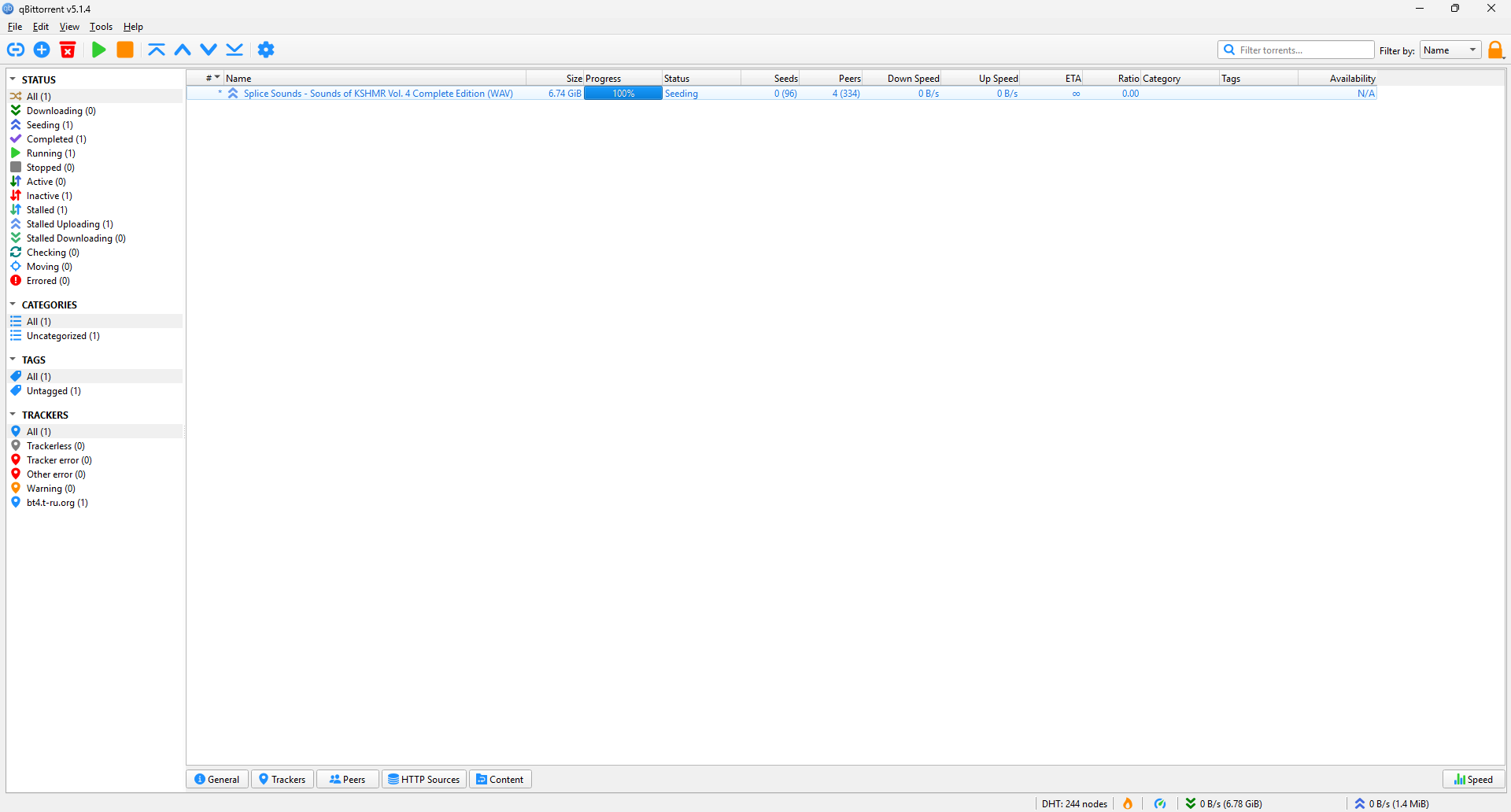
A. Left Sidebar - Filters
This section groups your torrents by what they are currently doing. This is the most frequently used section.
-
STATUS:
-
All: Shows everything.
-
Downloading: Shows only files that are currently incomplete and trying to get data.
-
Seeding: Shows files that are 100% complete and are currently “turned on” to share with others. Use this to manage your upload bandwidth. If your internet is slow, check this list to pause torrents that are uploading too aggressively.
-
Running: It includes every torrent that you have clicked the “Start” (Play) button on, regardless of whether it is actually downloading/uploading or just sitting there doing nothing. If you have a massive list of 1,000 torrents, and 900 of them are Paused (stopped), you click Running to see only the 100 tasks that are currently enabled.
-
Completed: Shows all files that are finished (both those currently Seeding and those you have Paused). Use this when you want to clear out your list. You can select old completed files here and delete them from the list (or disk) to free up space.
-
Active/Inactive:
-
Active: Torrents actively moving data (uploading or downloading) right now.
-
Inactive: Torrents that are “On” but no data is moving (usually because no peers are connected).
-
-
Stalled (Stalled Uploading/Downloading): The torrent is “running,” but it hasn’t transferred data in a while. This is your troubleshooting folder. If a download is stuck at 99% for days, it will appear here. It tells you that you might need to find a new source or that the torrent is dead.
-
Checking: qBittorrent is reading the file on your hard drive, piece by piece, and comparing it against the digital fingerprint (hash) of the torrent file to ensure the data is perfect.This process is disk-intensive. Your computer might slow down slightly because the hard drive is reading data as fast as it can.
-
Moving: The file is actively being transferred from one folder on your hard drive to another by qBittorrent. You can set qBittorrent to download incomplete files to a “Temp” folder (e.g., on your fast SSD) and automatically move them to a “Storage” folder (e.g., your large HDD) once they reach 100%. While the file is hopping from the SSD to the HDD, it appears in Moving. Never force-close qBittorrent or shut down your PC while a file is in the Moving status. Doing so can corrupt the file or result in half the data being in the old folder and half in the new one.
-
Errored: If you delete a downloaded file from your hard drive manually (via Windows Explorer), qBittorrent will show an “Error” here saying “Missing Files.” You check this filter to fix broken paths.
-
-
CATEGORIES: Categories allow you to organize files into folders. You currently have “Uncategorized,” but you can right-click a torrent and set a category (e.g., “Movies,” “Music,” “Work”).
-
All: Show everything.
-
Uncategorized: The files are not allocated categories. You can set each Category to automatically save to a separate folder. For example: Just assign the label “Movie” and the file will automatically go to drive D:\Movies.
-
-
TAGS: Tags are similar to Categories but more flexible. A file can only have one Category, but it can have multiple Tags. You can use tags to mark the “status” of the content itself, not the download. Some users tag torrents as “VPN Only” or “Public” to quickly see which files require extra security before starting.
-
TRACKERS: A “Tracker” is the specific server that introduced you to the peers you are downloading from.
-
All: Show all trackers.
-
Trackerless: Files operate entirely based on DHT (a distributed network between users and users) without going through an intermediary server.
-
Tracker error / Other error: Where to check when loading speed is too slow. If you see multiple trackers with errors, it may be blocked by the network, or the tracker is dead.
-
Warning: Tracker still works but there is a strange message from the server.
-
Domain list: When you click here, qBittorrent will only show files that are connected to this specific tracker. Used to check how many files you have downloaded from a specific website/source.
-
B. Main Panel
The Main Panel is your dashboard. It tells you the health of your file and the group of people sharing it.
-
Size: The total amount of disk space the file occupies. (6.74 GiB).
-
Progress: The percentage of the file currently saved to your hard drive.
-
Seeds:
-
This column shows the number of users who have 100% of the file and are sharing it. The number format X (Y) is crucial to understand.
-
Y (96) (Inside parenthesis): There are 96 total seeds available globally.
-
X (0) (Outside parenthesis): You are currently connected to 0 seeds.
-
-
Peers: This column shows the users who are currently downloading the file (they have less than 100%).
- Example on above picture: 4 (334): You are actively sending data to 4 specific people right now. There are 334 people total trying to get this file.
-
Down Speed / Up Speed: The rate at which data is moving right now. If “Down Speed” is low but you have many seeds connected, your ISP might be throttling you, or your settings need adjustment.
-
Ratio: Total Uploaded ÷ Total Downloaded
- Private trackers: You are often banned if your ratio drops below 1.0 (meaning you must upload at least as much as you took).
-
Availability: This estimates how many unique copies of the file are distributed among the peers you are connected to.
C. Bottom Tabs
General
-
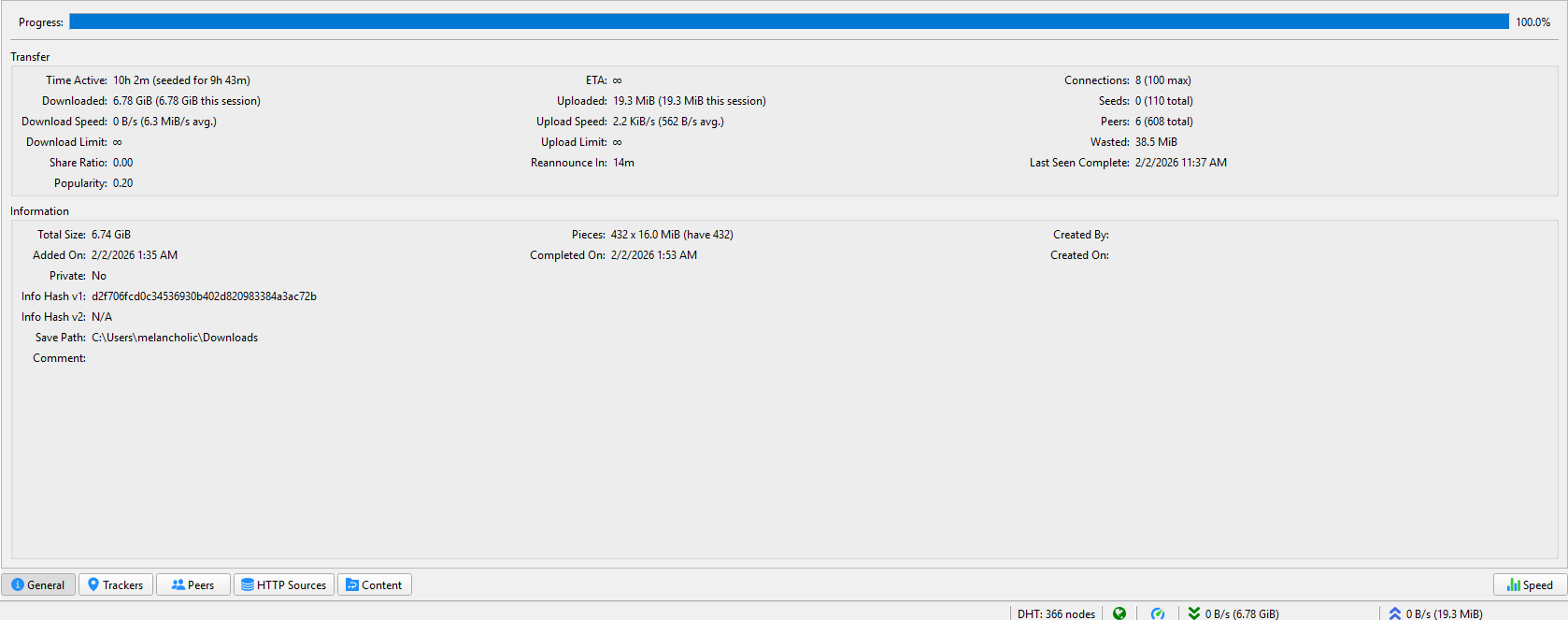
Time Active: The total time this torrent has been running in your client since you added it.
-
Downloaded / Uploaded: The total amount of data you pulled from others. Since “this session” matches the total, you downloaded it all in one go without closing the app.
-
Download Limit: The “Infinity” symbol means you have set no manual speed cap. The software will use as much bandwidth as it can get.
-
Wasted: Data that was downloaded but discarded. This happens when a piece of data arrives corrupted or fails a “Checksum” verification. qBittorrent automatically threw it away and downloaded a clean copy.
-
Last Seen Complete: The last time you saw another seed (a person with 100% of the file) online.
-
Pieces: Torrent files are split into tiny Lego blocks called “pieces.” This file is made of 432 pieces, and each piece is 16 Mb in size. You have all 432 of them.
-
Private:
-
Public torrent: your client is allowed to use DHT (Distributed Hash Table) to find peers outside of the main tracker. If the main server (tracker) dies, your client asks other peers, “Do you know anyone else who has this file?” (DHT/PEX). You can keep downloading even if the tracker is offline.
-
Private Torrent: Your client is technically locked down. It is only allowed to get the list of peers from the specific private tracker URL inside the file.
-
-
Info Hash v1: This long code is the unique digital fingerprint of the file.
D. Footer
-
Connection Status Icon (The Plug or Flame):
-
Green Plug: (Optimal) Your connection is “Open.” You can accept incoming connections from others. You will get maximum speed and can seed effectively.
-
Orange Flame / Yellow Triangle: (Firewalled) You are behind a router or firewall that is blocking incoming connections. You can still download, but your upload speed will be very poor (as seen in your stats).
-
Red Icon: (Disconnected) You have no internet connection or the proxy is invalid.
-
-
DHT nodes: Instead of asking a central server (“Tracker”) where to find a file, your computer asks other users (“Nodes”). If a tracker goes offline, DHT allows you to keep downloading.